IPAD / 01
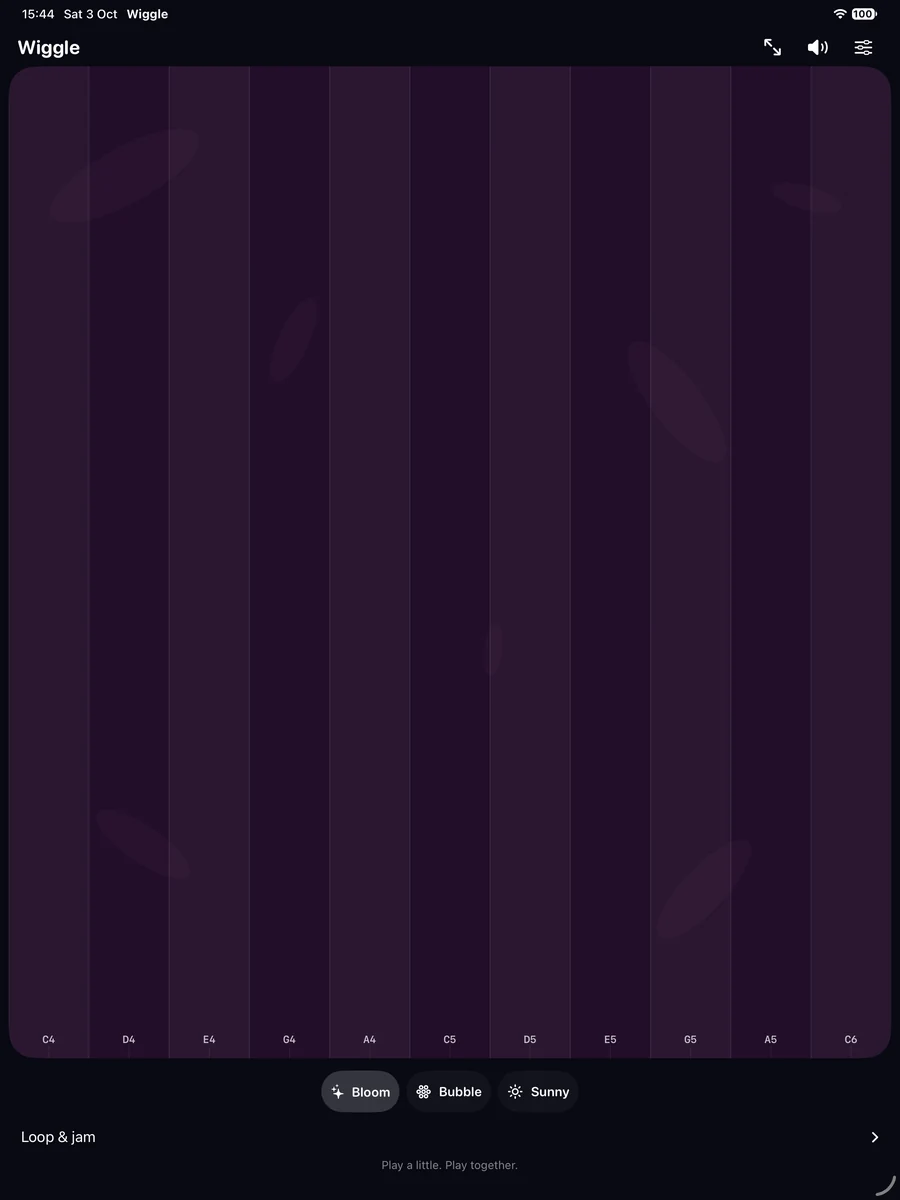
Your first touch
- Open Wiggle. Quick start introduces the touch surface; use Learn later to play right away. Replay it from Settings whenever you like.
- Turn off Silent Mode and enable music with the toolbar speaker button. Set a gentle volume in Settings > Music and check device volume and audio routing.
- Hold a finger to sustain a note, move sideways for pitch and up or down for tone. Release all fingers to end the live note; short echo or release can fade out.
- Choose Bloom, Bubble or Sunny below the canvas. Rotate the iPad for a wider landscape surface. Controls adapt to the available size.
IPAD / 02
Toolbar, fingers and playing together
- Use Settings, music/mute and the full-screen expand button in the toolbar. In Play controls, use Vertical notes to swap the pitch and tone axes.
- Choose Fingers: Newest leads, First leads or Blend positions. With Newest leads, the most recent finger controls the note; with First leads, the oldest remaining finger does; Blend averages their positions.
- The larger surface supports multiple active touches but still produces one live synth note. Take turns or steer together; this is not a separate voice for each player.
- Enable each world's Touch guide under Visual tuning to show the controlling point and waiting fingers. Blend shows the shared center.
IPAD / 03
Explore a wider note map
- In Settings > Music, choose Key, Scale, Octave and Note range. These musical choices apply across all worlds.
- Turn on Show notes to see named touch regions. Use Two or Three octaves for a broader span, or Half/One octave for larger note regions.
- The highlighted live note follows the leading finger, or Blend's shared center. Release, mute, Settings and backgrounding clear it. Loop notes do not drive this highlight.
- Choose Effect depth and optional Tilt for tone shaping. With Vertical notes, the bottom-to-top axis chooses pitch. Tilt by itself does not start a note.
IPAD / 04
Record, loop and jam
- Set Loop tempo under Settings > Play controls. Expand Loop & jam and select Record 4 beats, then play a short phrase.
- Recording ends after four beats, or choose Finish recording. Wait for Phrase ready, then select Play loop and play over it.
- Release stops your live note, not intentional loop playback. Stop loop stops the phrase and Clear removes it. Settings, mute and backgrounding also stop playback.
- Phrases are musical events held for the session, not microphone recordings, exported audio/MIDI files or synced duets.
IPAD / 05
A shared-play surface
- Choose a world and comfortable volume, then enable Full-screen play using the toolbar expand button or Settings toggle.
- Triple-tap the top-left gear for Settings or the top-right world icon to switch worlds without leaving full-screen play.
- For a separate system restriction, configure Apple's Guided Access. Full-screen Wiggle does not prevent a Home gesture or pressing system buttons. Read the complete guide's start and exit instructions first.
- Stay nearby and keep sessions short and playful. Wiggle is a creative toy, not a developmental or medical tool.
IPAD / 06
Settings stay on this iPad
- Your musical settings and all three world setups save on the iPad automatically. Customizing one world does not rewrite the others.
- Apple Watch pairs with iPhone, not iPad. The optional Watch settings-transfer feature is not available here.
- No account is needed. Your live gestures and session phrases are not sent to another device or a developer-operated music server.
SHARED FEATURE REFERENCE
Make each world your own instrument
Open the Customize entry for your selected world in Settings. In the editor, check the World selector before changing anything. Changes here belong only to that world and save automatically.
- Voice
- Keep World original or choose Soft, Round or Bright as a new starting character.
- Harmonics
- Move from a purer sound toward a richer tone.
- Filter
- Move from warmer to more open and bright.
- Motion
- Adjust the amount of gentle vibrato or movement.
- Space
- Adjust the short echo, from drier to more spacious.
- Envelope > Attack / Release
- Choose a quicker or softer onset and a shorter or more lingering fade. Release is bounded; lifting all fingers still ends the held note.
Hear this sound auditions the selected setup when music is enabled. Reset this world asks for confirmation and restores only that world's sound and visuals. It does not reset the other worlds, your key, scale or volume.
Key, scale, octave, note range, effect depth and general play controls are shared across worlds. Your customized sound character and visual setup are per world.
SHARED FEATURE REFERENCE
Choose the look and the particles
In Customize world, visual choices are saved separately for Bloom, Bubble and Sunny. They do not alter pitch, sound or finger ownership.
- Style
- Playful preserves each world's original art. Orbits, Prism, Ripples and Constellation offer rings, facets or connected stars.
- Particles
- Choose World original, Sparks, Bubbles, Petals, Diamonds, Mixed, Hearts, Music notes, Emoji or Note labels. World original follows the selected style. Mixed varies between sparks, bubbles, petals and diamonds.
- Emoji
- When Emoji is selected, choose one of eight curated symbols: Star, Heart, Flower, Butterfly, Bubbles, Music, Planet or Smile.
- Note labels
- Emit pitch names such as C4 from the playing position. Labels match the key, scale and range when each particle is created, and keep that pitch as they fade. Waiting fingers do not emit these labels; Blend emits from the shared center.
- Color shift / Trail size / Moving background
- Adjust the palette and trail size, or stop the backdrop from moving.
- Visual tuning
- Adjust Trail brightness, Background level and Spread. A background level of zero removes the backdrop. Touch guide can be enabled or disabled separately.
- Visual energy
- Calm, Balanced and Vivid adjust overall particle density in Play controls. This is a general setting, not a per-world style.
Note labels are different from Music notes: Music notes uses a decorative musical-note symbol, while Note labels shows the pitch name. Neither choice automatically turns on the fixed Show notes map.
Low Power Mode and Reduce Motion reduce animation automatically. Choose Calm, reduce brightness or disable Moving background if you prefer a quieter screen.
SHARED FEATURE REFERENCE
Troubleshooting and privacy
- No sound
- Check Silent Mode, Music/mute, Wiggle volume, device volume and connected audio devices. Touch again after an audio interruption.
- Watch closes under several fingers
- A cover-to-dismiss system gesture can look like a crash. Try one or two fingers without covering most of the display. If the app exits during ordinary play, report the device and steps to support.
- Settings seem different from these pictures
- Confirm your app version and device. Watch Settings is compact; phone/tablet layout, menu style and text size differ. Scroll to reveal additional controls.
- Changing one world affects the others
- Key, scale, note range, Show notes and general play controls are shared. Customize world sound and visual choices are independent. Check which World is selected before editing or resetting.
- Nothing plays after returning
- Wiggle stops expensive audio and interaction work when inactive. Return to the foreground and touch again; it does not automatically resume a held note.
The native app needs no account and has no ads, analytics, tracking or developer-operated sound server. Preferences stay on the device. Optional paired-device settings transfer is deliberate. Tilt is processed locally and phrases contain musical events, not microphone recordings.
The website demo is a simplified browser sketch, not the complete native synth, settings editor or a Watch-speaker simulation. Website hosting and any optional adult launch emails have their own privacy details.
For help, email support@playwiggle.com with your device, OS version, Wiggle version and steps to reproduce. Do not include passwords or a child's personal information. Support messages do not subscribe you to launch emails.